
Set up a new installation — /setup
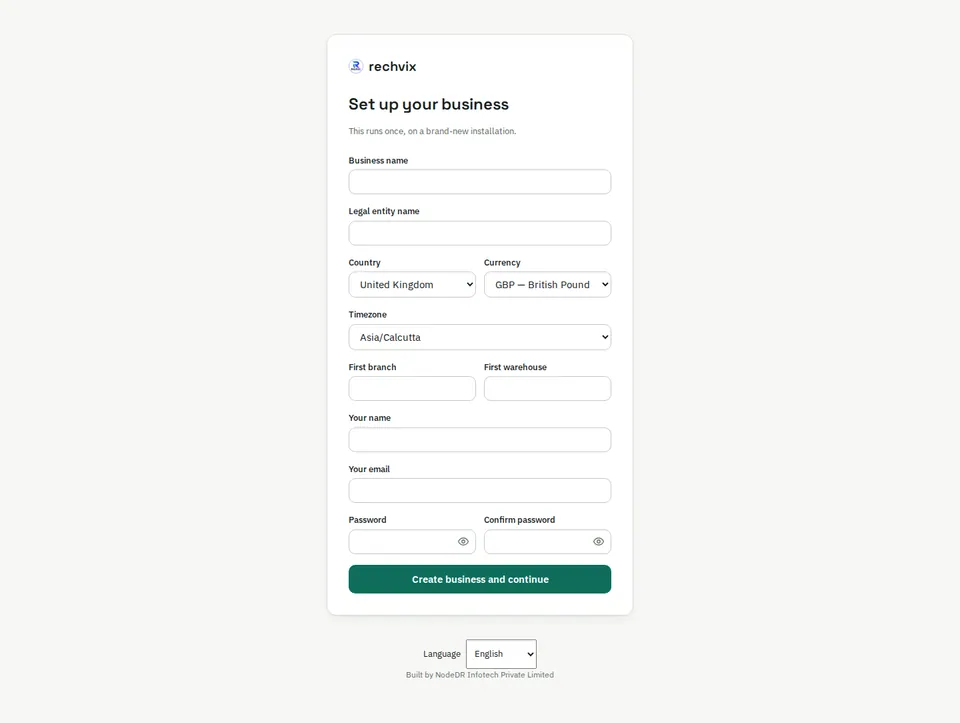
Open Set up your business from the sign-in page on a new installation.
- Enter the business name and the legal entity name that should appear on invoices.
- Choose the actual country, book currency and timezone. Check these even when the browser supplies defaults. The country controls the tax regime; the book currency controls accounting. Choosing another currency on an invoice later does not change your accounting currency.
- For India, supply the business GST state and, when registered, its GSTIN.
- Name the first branch and warehouse.
- Enter the owner's name, email and a password of at least 12 characters; confirm the password.
- Select Create business and continue, then sign in.
Use the setup screen for a fresh installation. Existing users should sign in instead. The administrator should disable public bootstrap after setup using the deployment configuration.
 Open image in a new tab
Sign in — /login
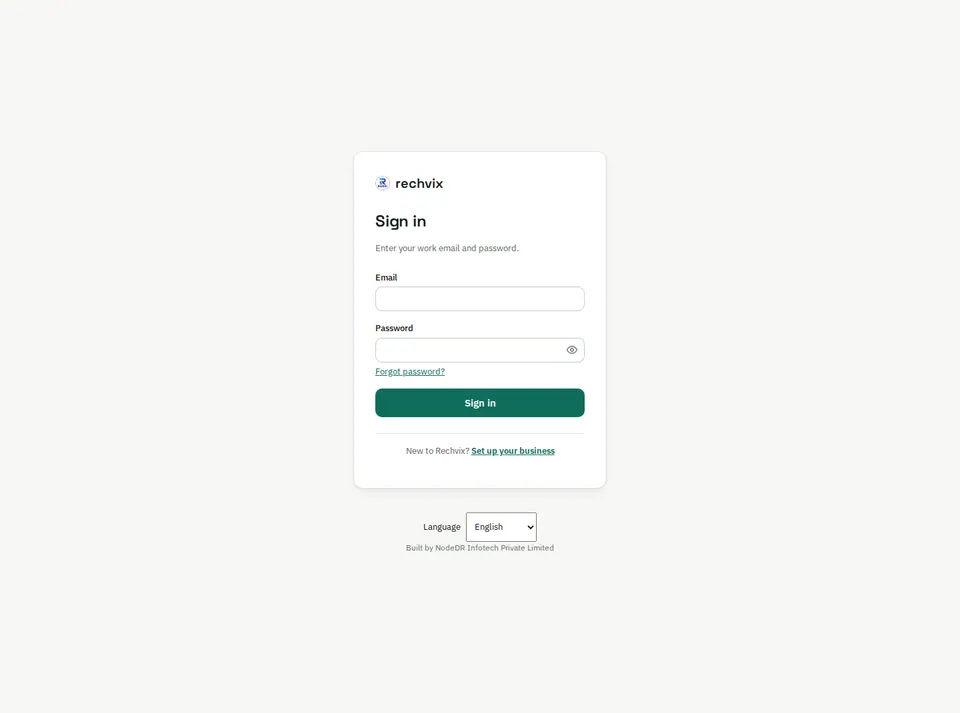
Enter your work email and password, then select Sign in. Use the eye button to check a mistyped password. The language picker changes interface language. Protect your account and avoid sharing the owner's login with staff.
 Open image in a new tab
Recover access — /forgot-password and /reset-password
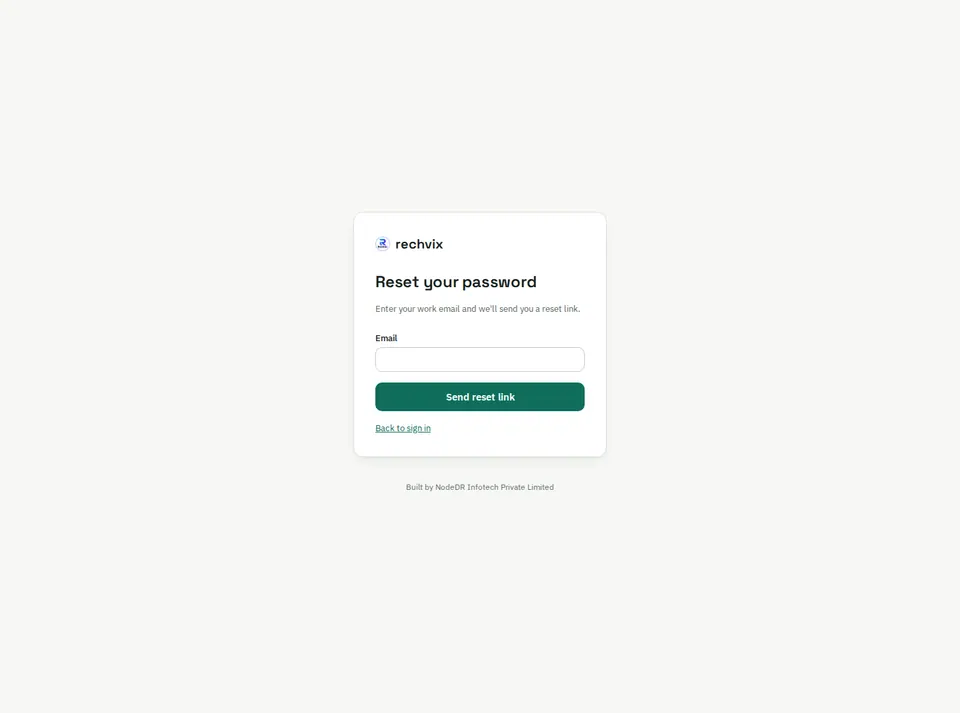
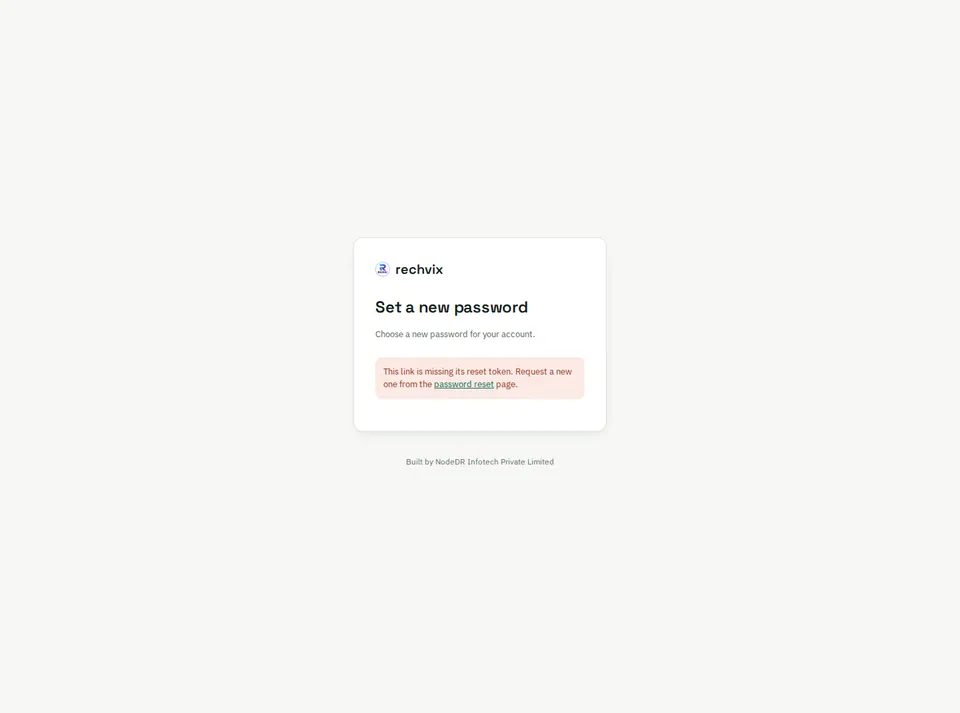
Select Forgot password?, enter your email and request a reset link. Open the link delivered through your installation's configured recovery workflow. Its token identifies the reset request; opening /reset-password alone cannot reset an account. Set and confirm the new password from a valid link, then sign in again. If no message arrives, ask the installation operator to check email delivery rather than repeatedly creating accounts.
 Open image in a new tab
The screenshot below deliberately shows the missing-token state, explaining why a direct visit cannot complete a reset.
 Open image in a new tab