
Sales list — /sales
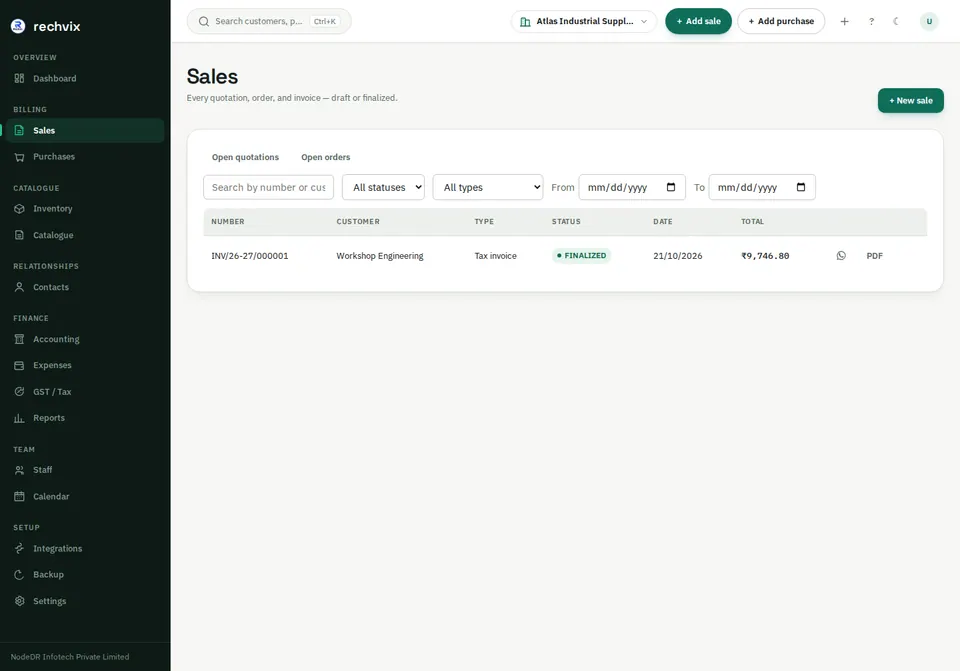
Use search, document-type/status filters and dates to locate quotations, orders and invoices. Open a document number to see details. A draft can be continued; a finalized document follows the supported return/cancellation workflow. + New sale opens the billing workspace.
 Open image in a new tab
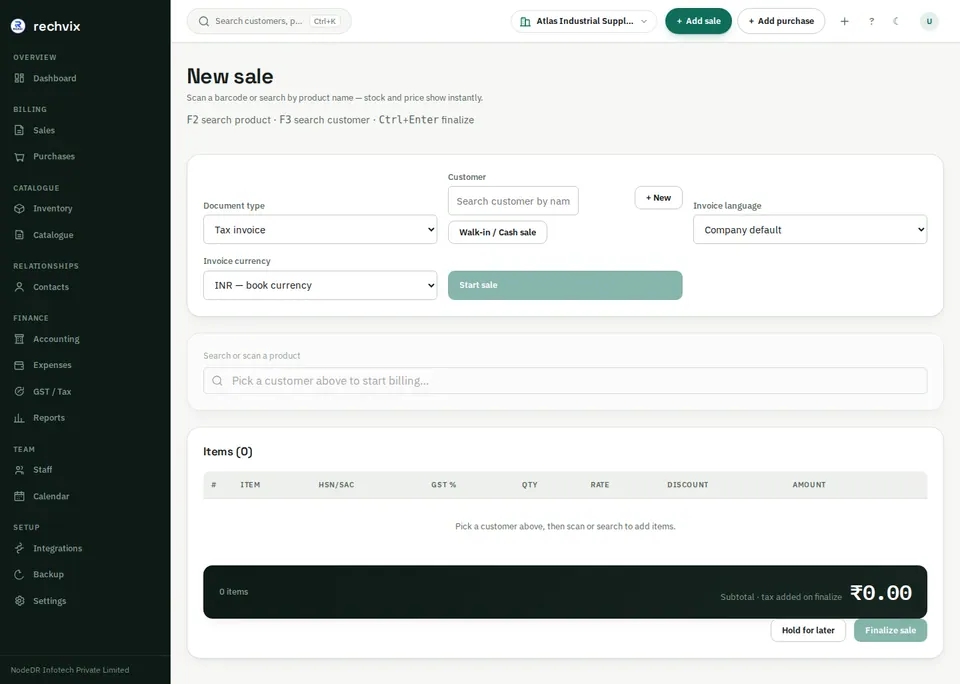
New sale — /sales/new
- Check the company, branch and warehouse context.
- Choose the document type, such as Tax invoice, POS invoice, Quotation or Sales order.
- Search for an existing customer by name or phone and select the result. For retail sales, use Walk-in / Cash sale when appropriate.
- Set invoice language and currency. If foreign currency is selected, enter and verify the exchange rate.
- Select Start sale when shown.
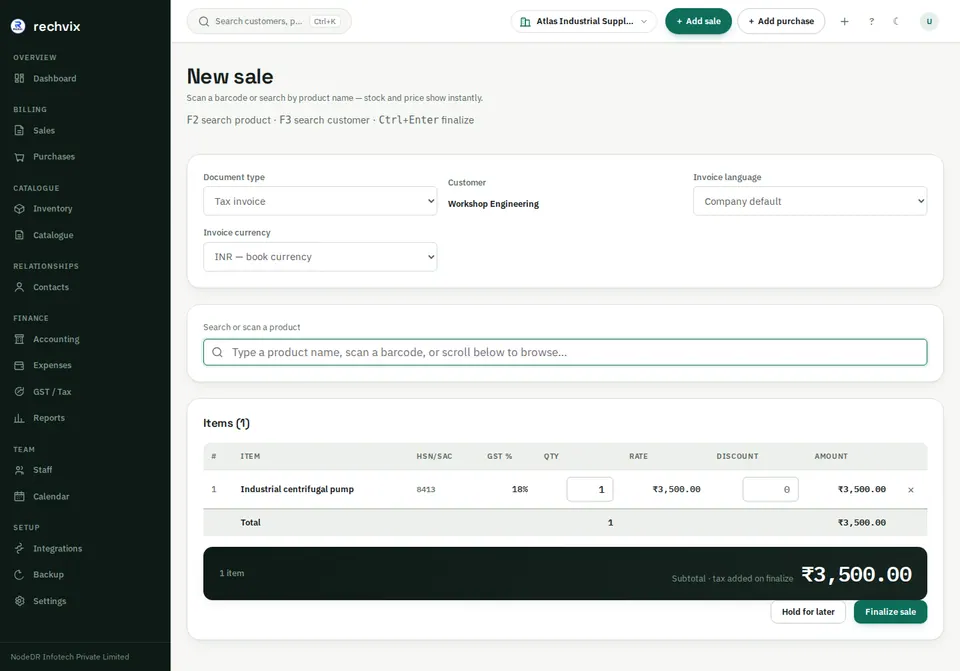
- Search or scan a product and use Add. Review available stock, quantity, rate and discount. Set a missing default selling price in Catalogue before using the item for normal billing.
- Add the remaining products in the same workspace. Check the subtotal and the applicable tax/pricing mode.
- Use Hold for later to leave a draft, or Finalize sale when the document is correct.
 Open image in a new tab
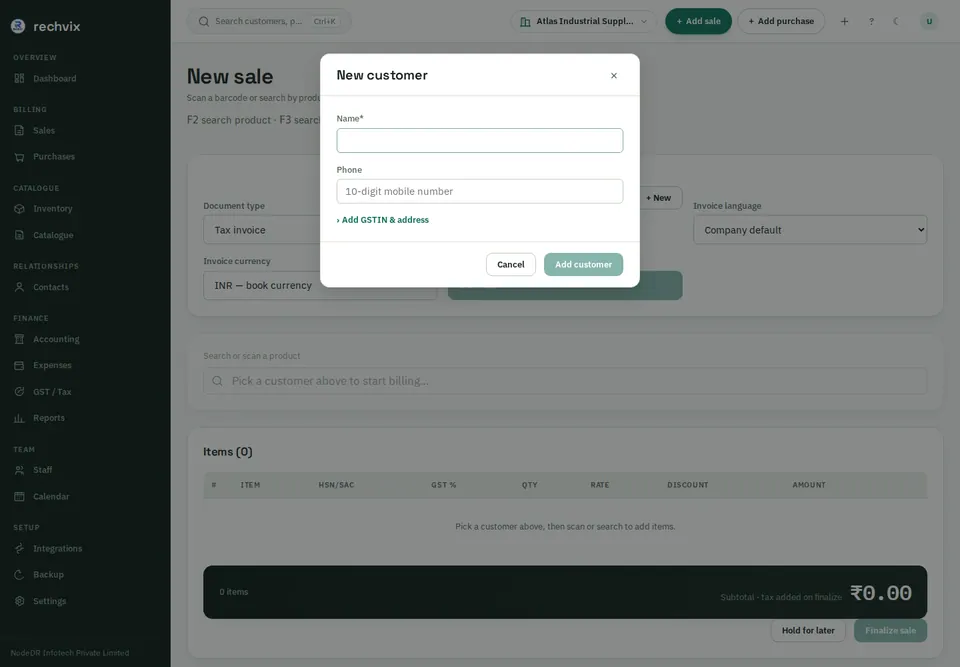
Create a customer without leaving the invoice
Use + New next to Customer, or the + New customer result beneath a search. Enter the name and phone. Expand Add GSTIN & address if needed, enter accurate registration/address details, then select Add customer. The new record becomes available in the current invoice; you do not need to navigate to Contacts and rebuild the invoice.
 Open image in a new tab
 Open image in a new tab
Finalization saves the document's tax calculation and creates the relevant accounting/stock effects. It is not the same as saving an editable draft. If a rate, stock or registration check fails, correct the stated issue and retry; do not create duplicate invoices to bypass it.